
Today, Leica Camera has announced a major new firmware update for the Leica M (Typ 240), firmware version 2.0.1.5. This update includes a large number of new features, some quite significant, and incorporates many of the changes that customers have requested and dealers have requested. The official release from Leica:
Leica Camera is pleased to inform you that a new firmware, version 2.0.1.5 is available for the Leica M (Typ 240) effective immediately. The new firmware includes many improvements which enhances the functionality of the camera. The installation instructions and the firmware file are available at:
http://en.leica-camera.com/Photography/M-System/Leica-M/Downloads
All newly produced Leica M (Typ 240) cameras will have the latest version of the firmware, 2.0.1.5 as a factory setting.
The new firmware offers the following improvements:
- Improves description of the lens type in EXIF-DATA.
- Live view is now possible with every lens (including older screw lenses via adapter) using “manual lens detection”.
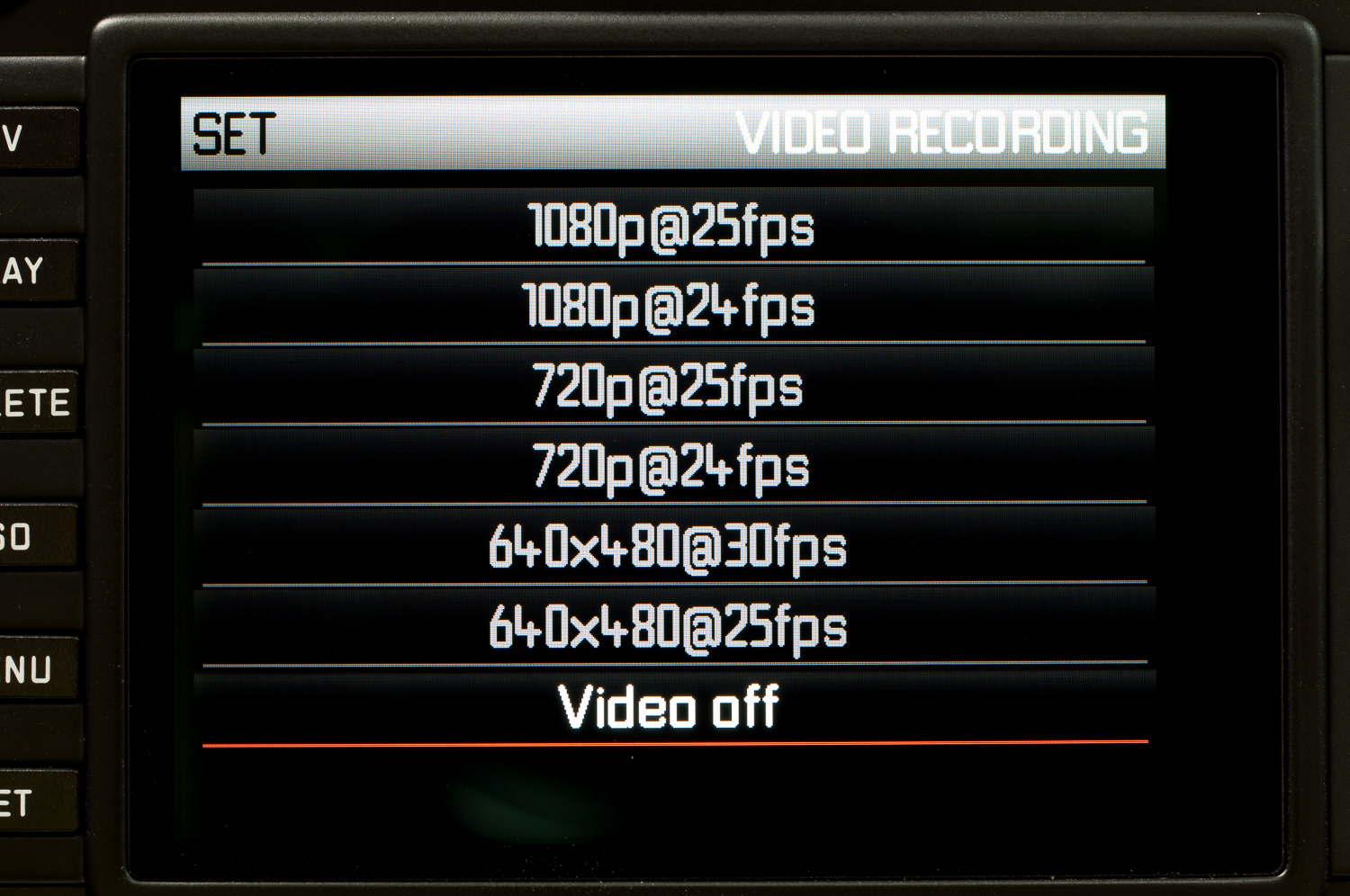
- A “Video Off” option is now available in the Set menu (see submenu item “Video Recording”). The M-Button on the top cover is deactivated when this option is chosen.
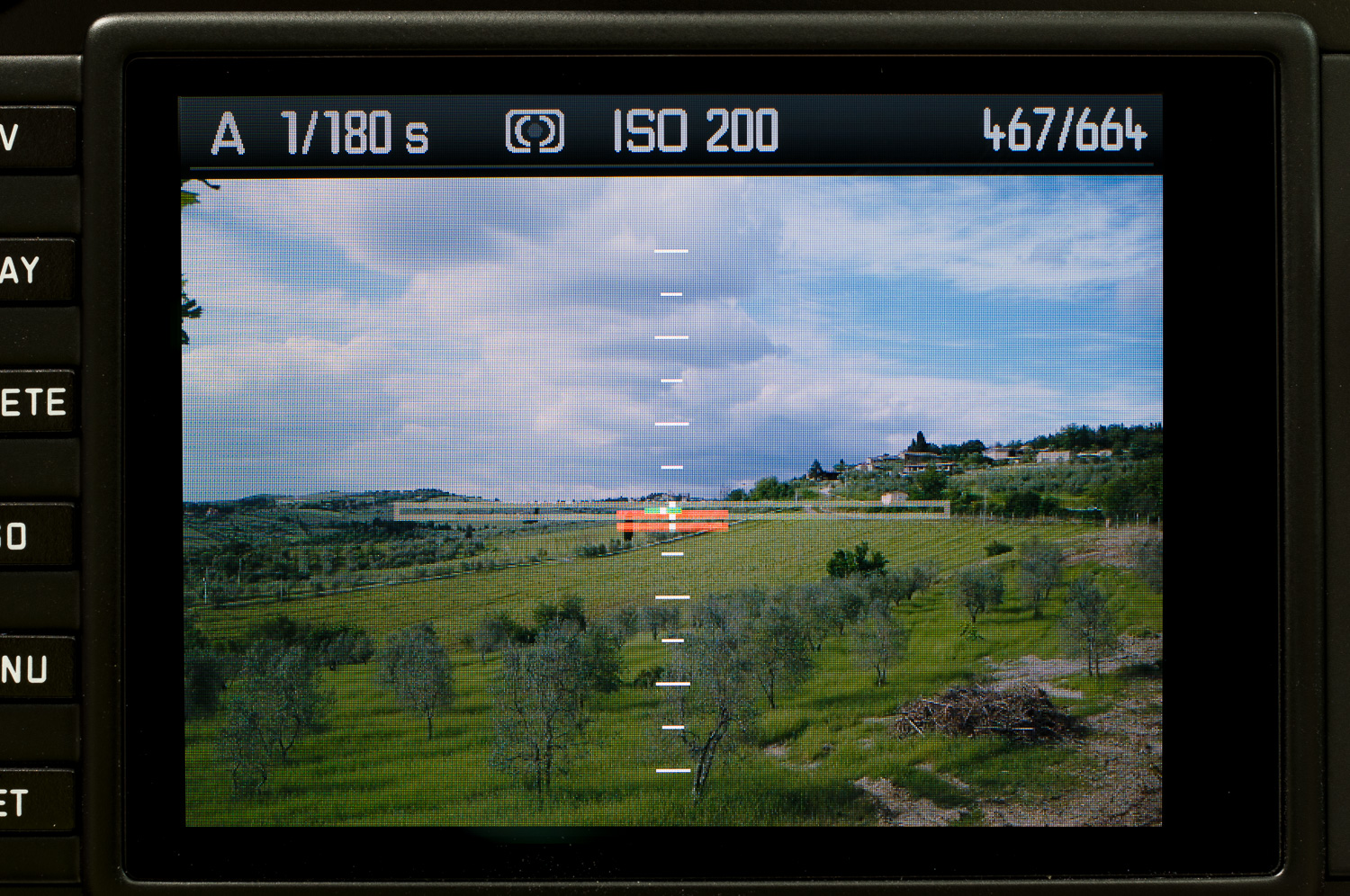
- The virtual horizon (level) is now visible in Live View, overlaying the live image. This additional info-screen is enabled using the menu item “Horizon”.
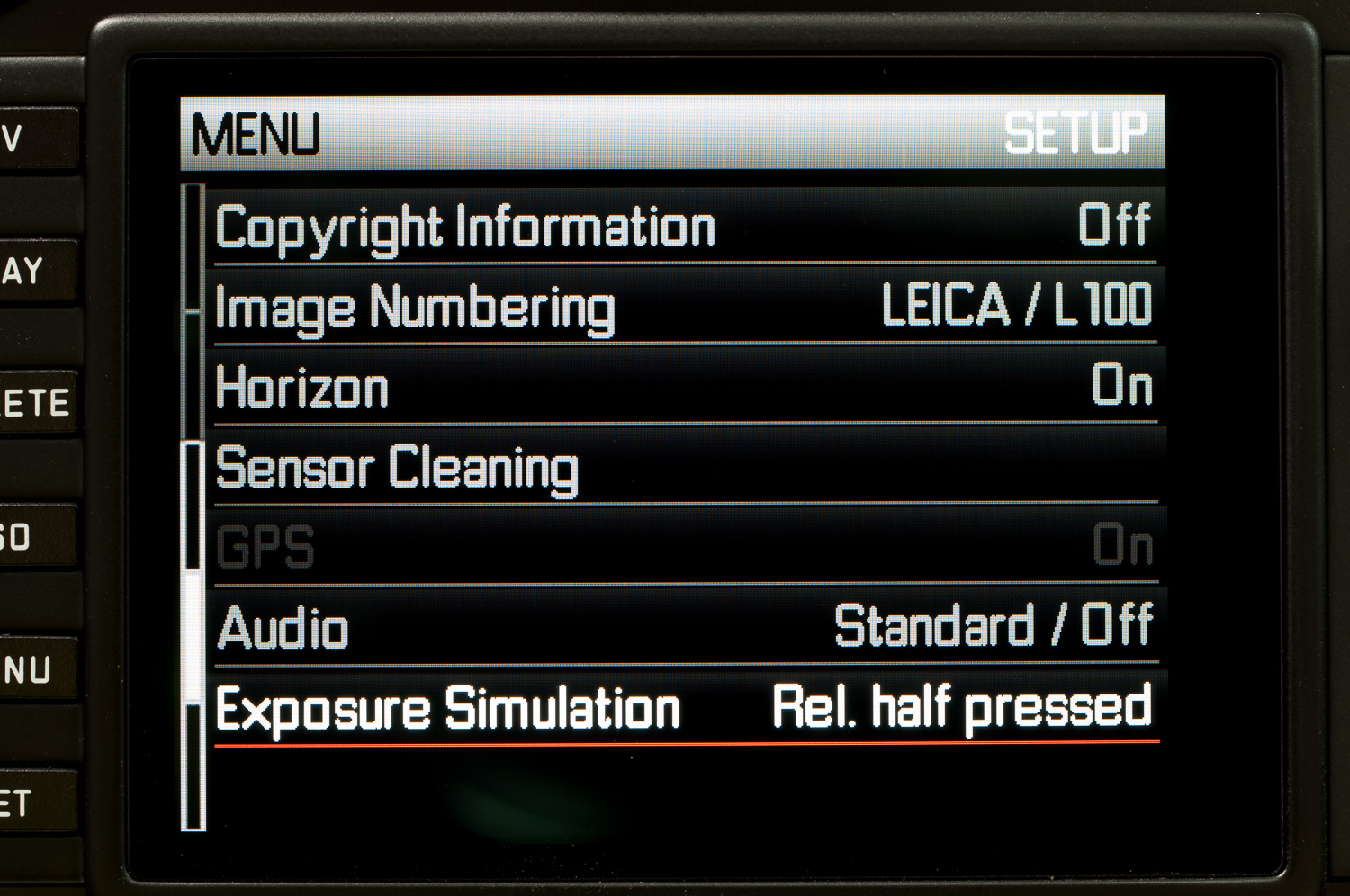
- New menu item “Exposure Simulation”:
- Exposure simulation – Permanent: Live View accurately shows images brightness according to the shutter speed and aperture set in manual exposure (as long as the chosen exposure time is shorter than 1/30s).
- Exposure simulation – Release button half-pressed: Image brightness in live view is adjusted for best visibility, regardless of the actual exposure
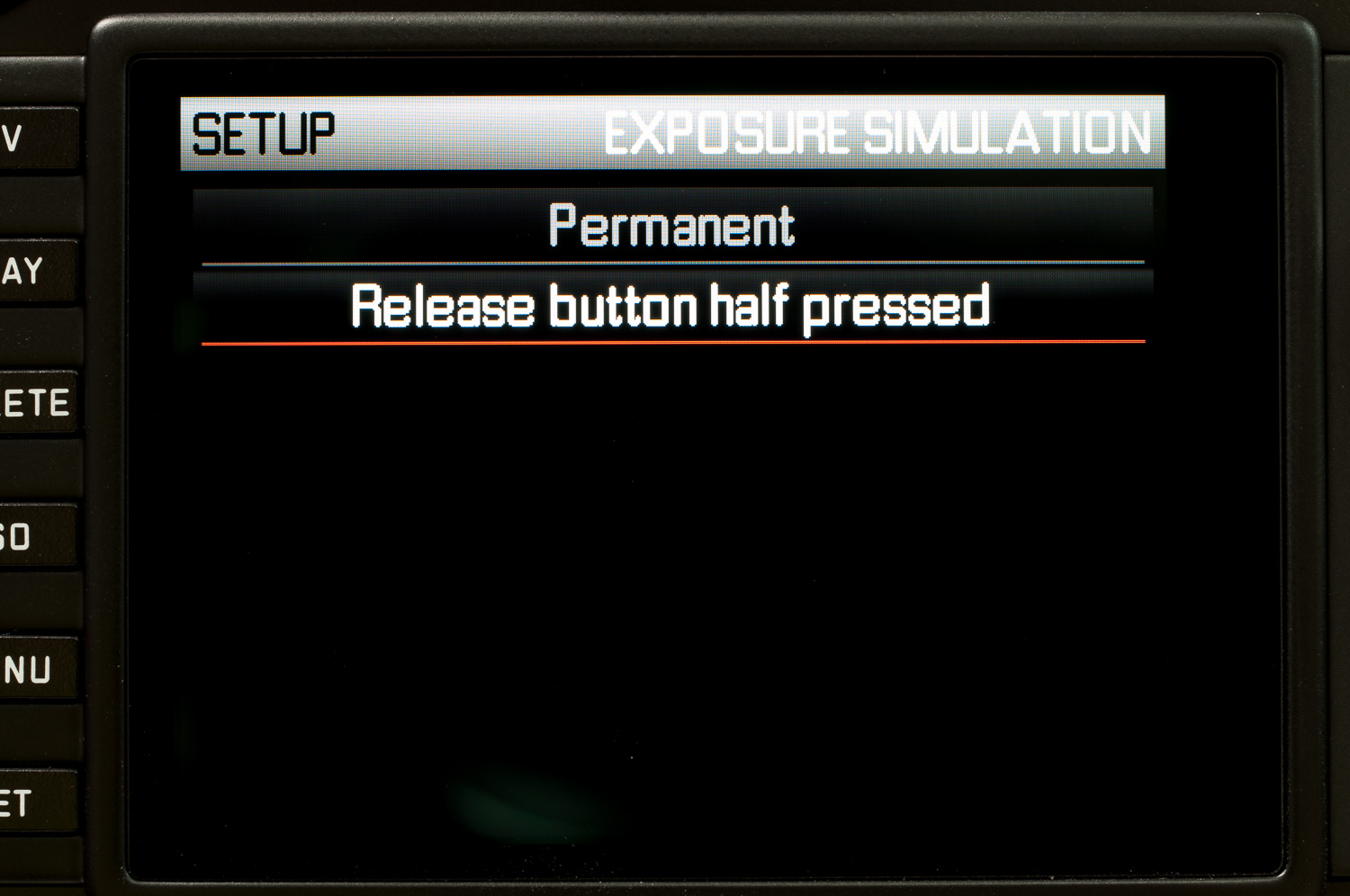
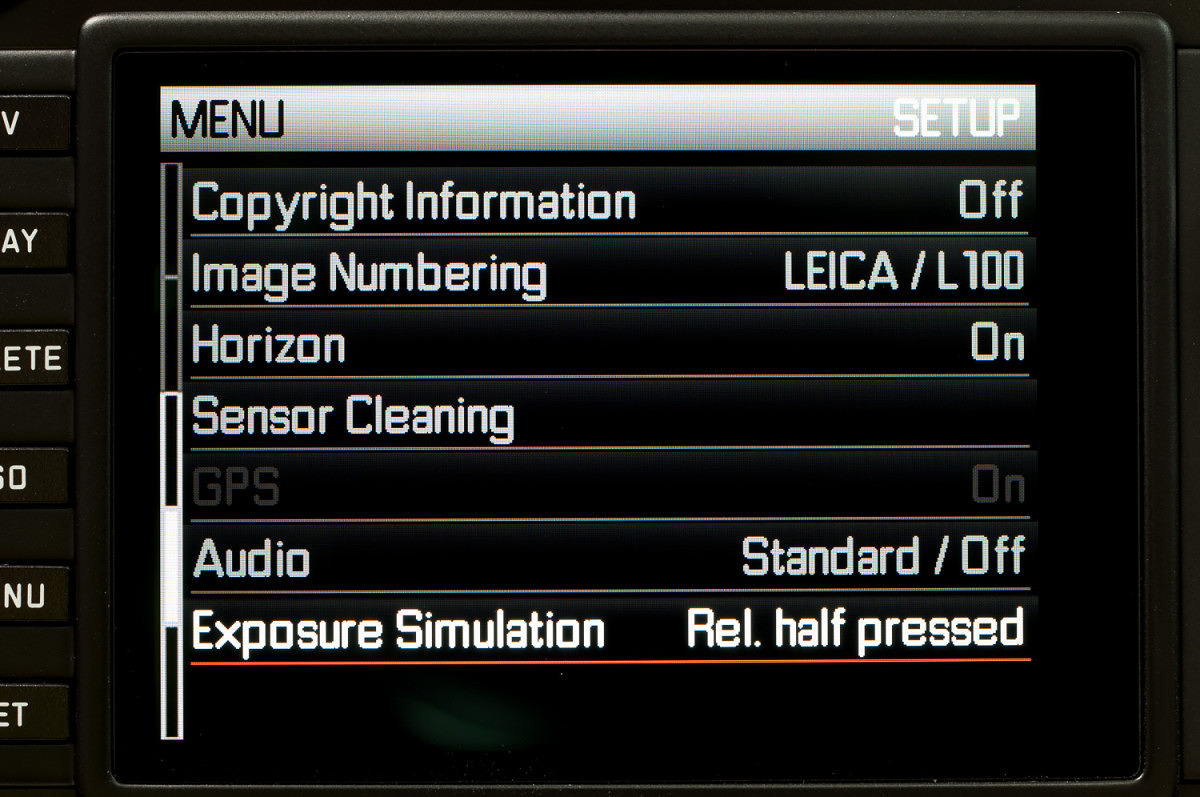
- Half pressing the shutter button shows the actual exposure.
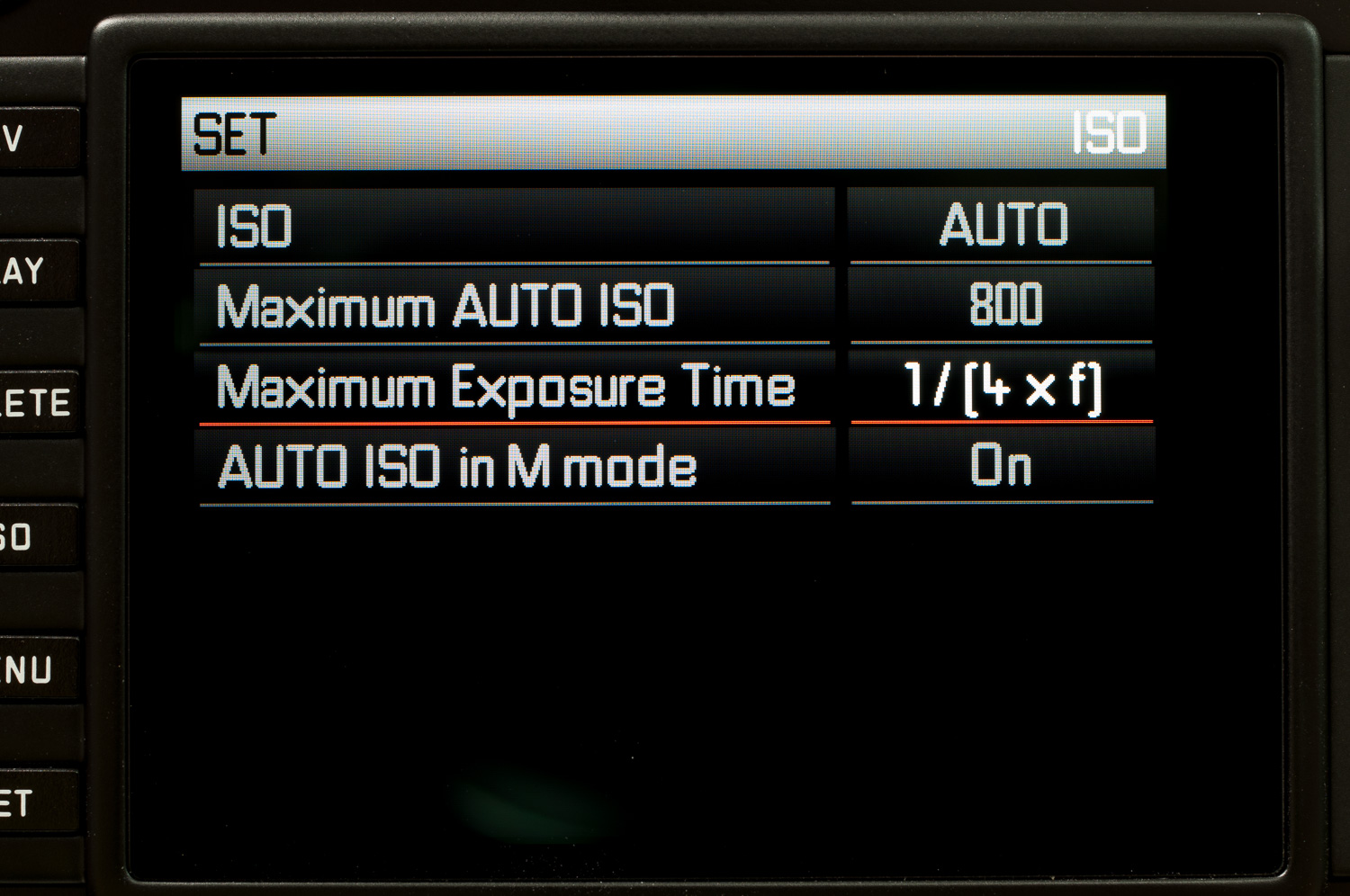
- Extended Auto ISO options:
- All AUTO ISO options are now visible using the ISO button.
- Extra options for “Maximum Exposure Time” – 1x, 2x or 4x focal length – can be selected to help avoid camera shake when using auto ISO and long lenses.
- “Auto ISO in M mode” is now offered as an option. This varies ISO sensitivity for correct exposure when shutter speed and aperture are set manually. Alternatively, the camera chooses the previous manually chosen ISO speed.
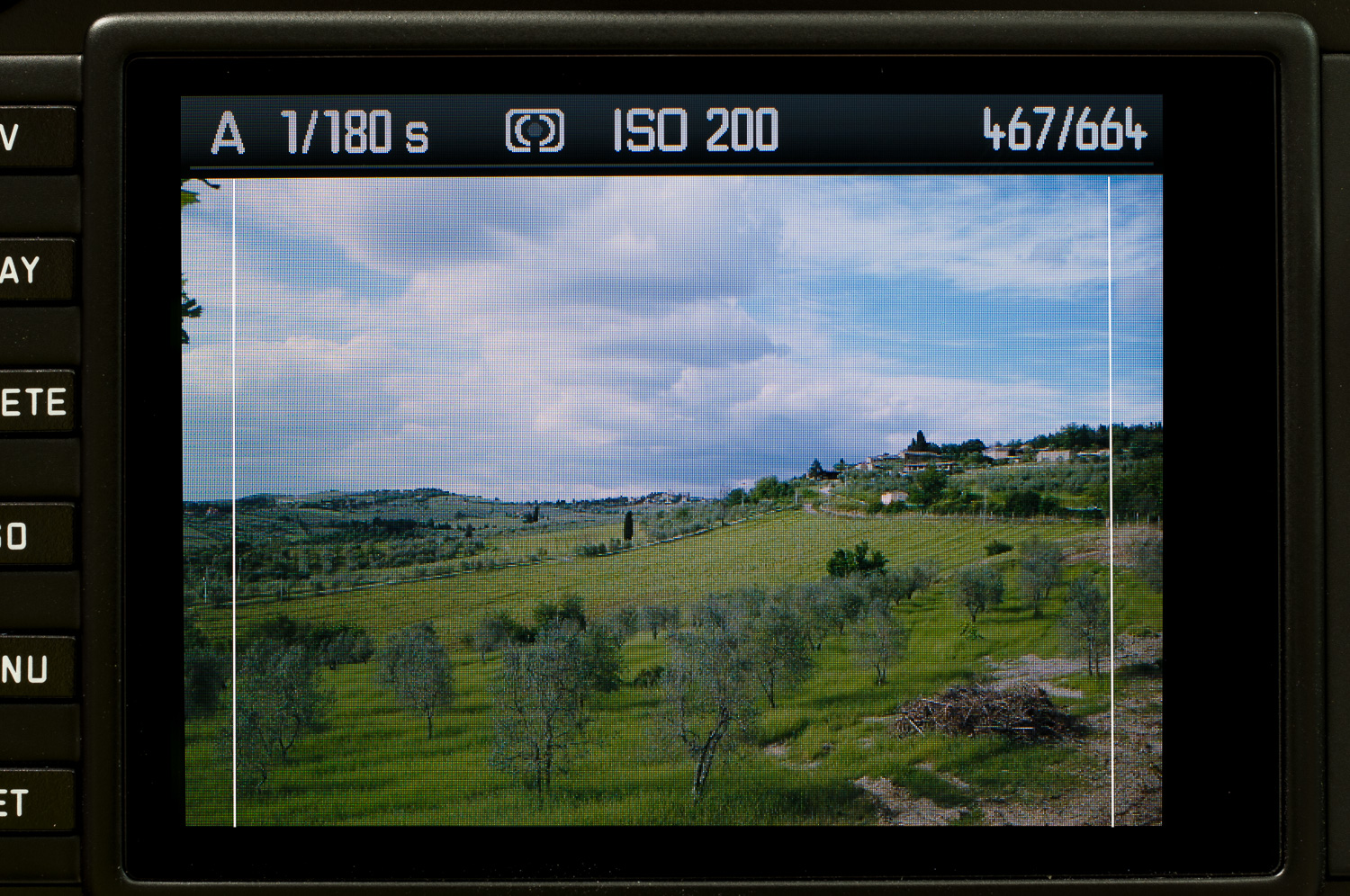
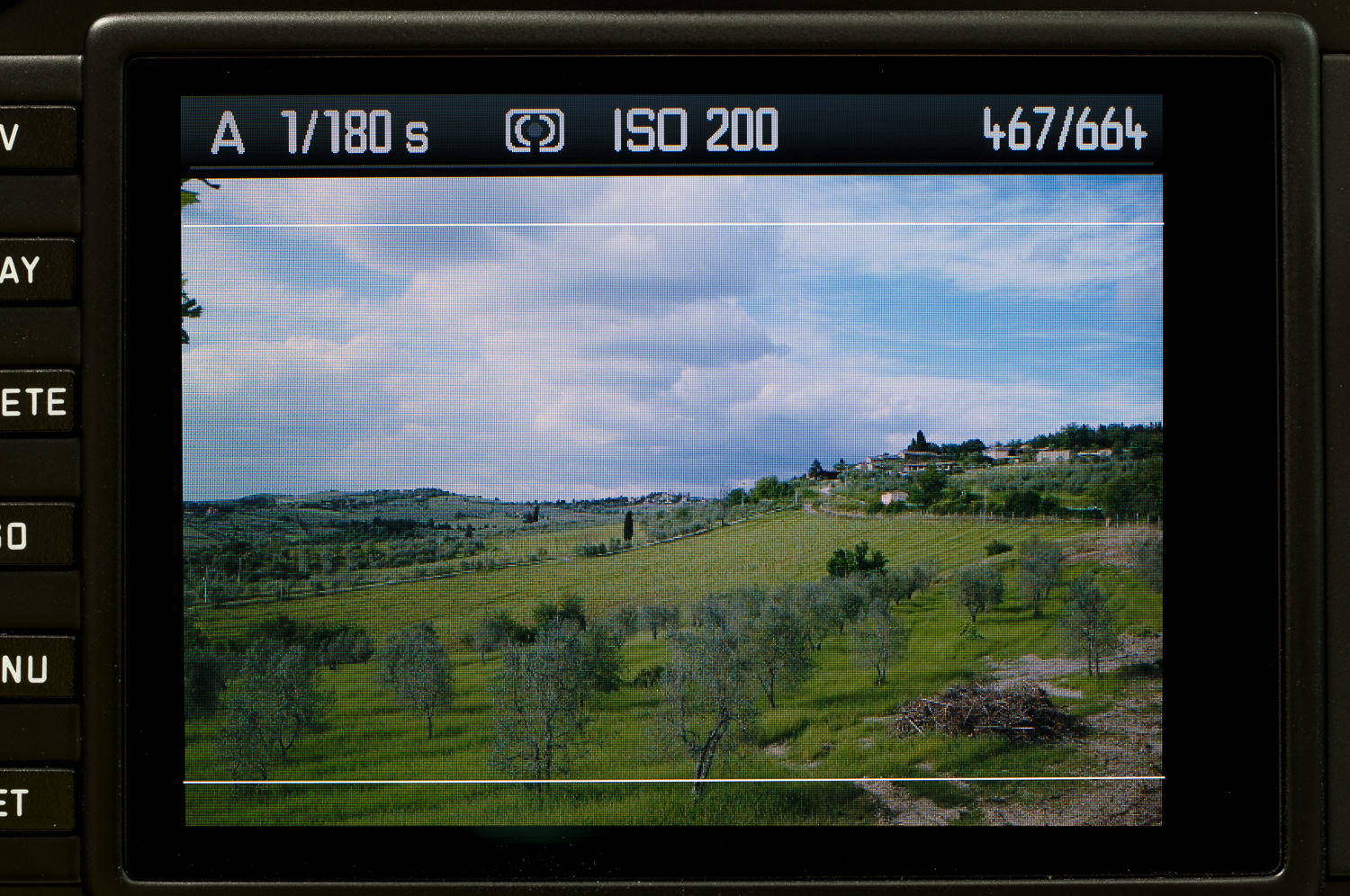
- Crop Marks: In Live View, new crop marks for 3:4/6:7/1:1/16:9 aspect ratios can be displayed. By pressing the up/down keys, the crop marks are superimposed on the live view screen (without additional information).
- Korean Language – is now available as a Menu language.
- During video recording, 1/25s is now used instead of 1/24s. This reduces flicker effects with 50Hz mains voltage.
- Exposure Bracketing settings are now saved when the camera is switched off.
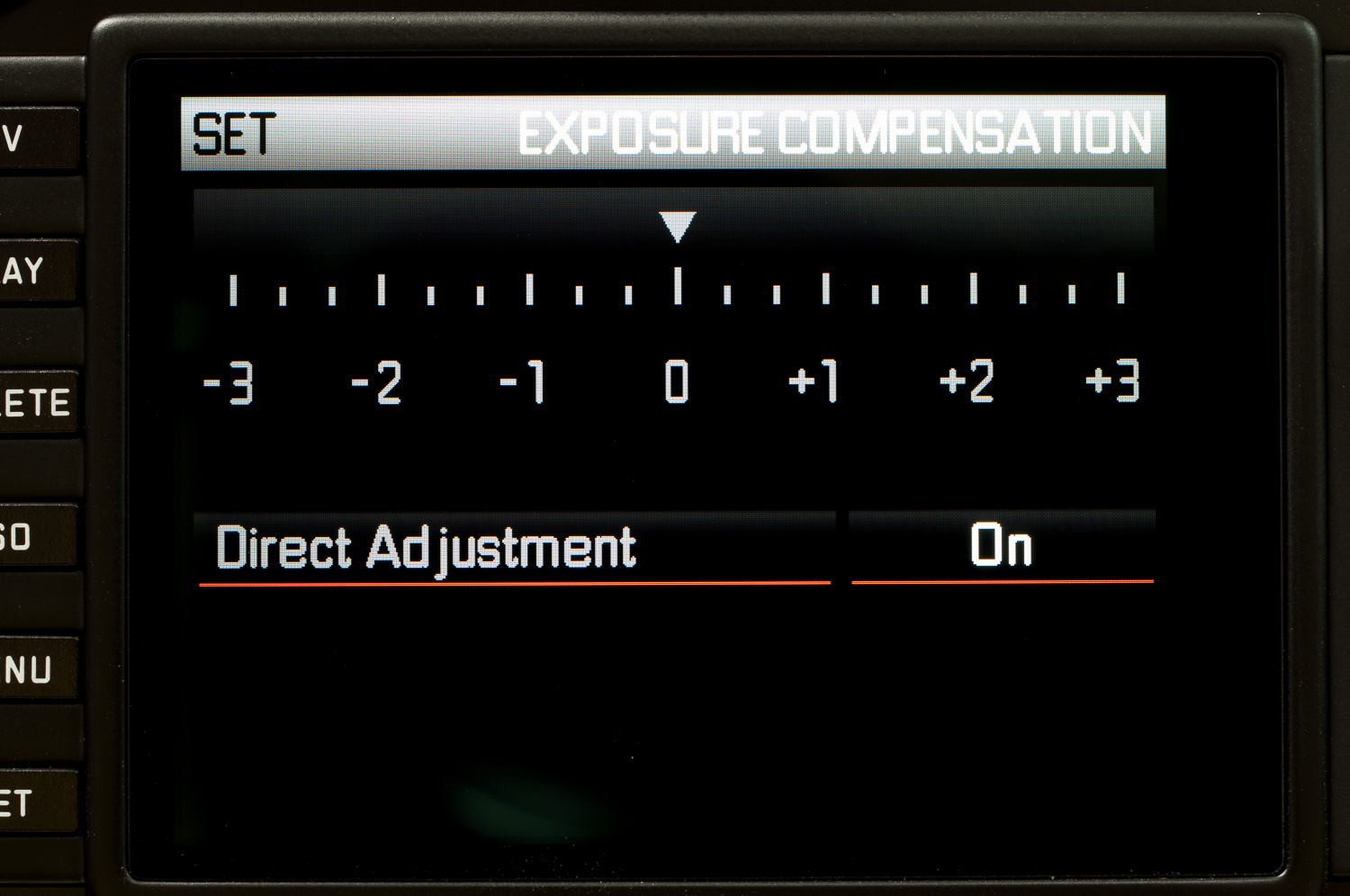
- Direct exposure correction – An “EV Correction” option is the menu enables direct adjustment so EV compensation can be altered by turning the thumb wheel, without having to press additional buttons.
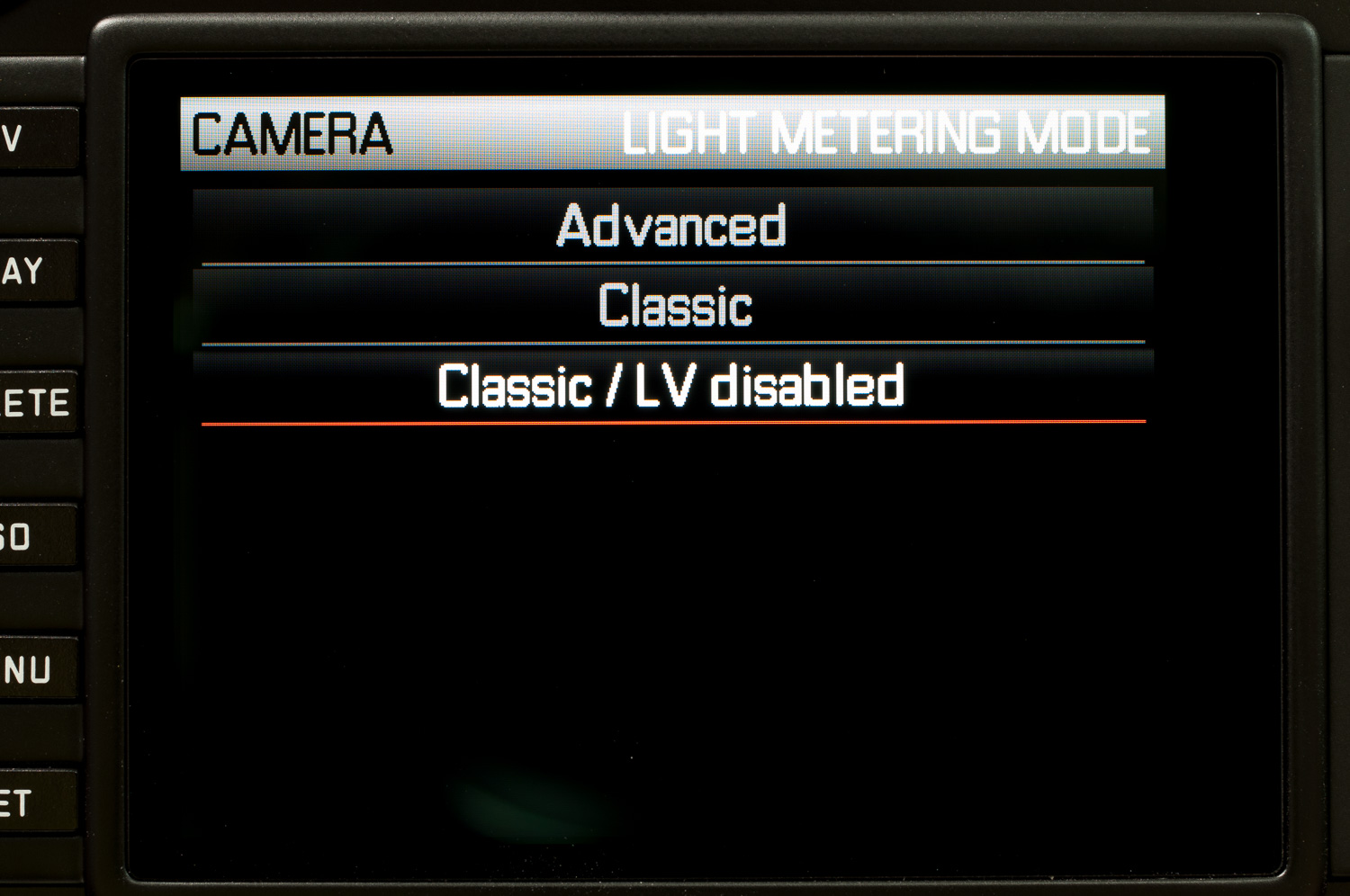
- New Light Metering Mode “Classic/LV Disabled” – In this mode, only Classic light-metering is possible, the LV button is disabled to avoid the activation of live view by accident.
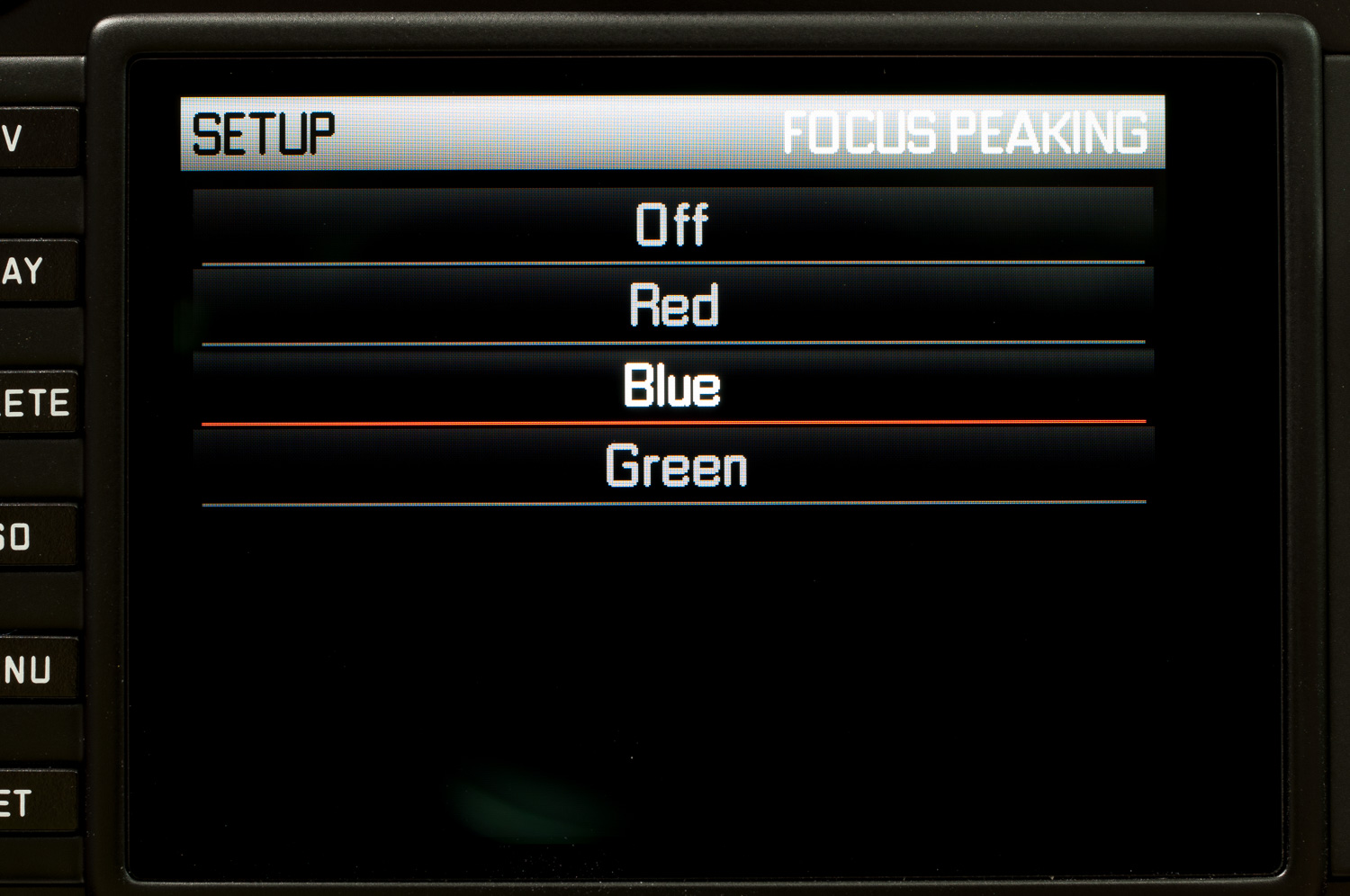
- New menu item, “Focus Peaking” – offers improved visibility and the color of focus peaking can be set to red, green or blue.
- Better display of GPS location data:
Position is now shown for JPEG files in Adobe Lightroom and where the signal is weak; the last position is now deleted after 5 minutes instead of 24 hours as in previous firmware.
- The new firmware provides bug fixes for the following:
- Live View at high temperatures
- Light metering (Live View)
- Sensor cleaning function
How to update the Leica M (Typ 240) Firmware:
- Format an SD card in your Leica M.
- It is important to have the battery sufficiently charged when updating the firmware.
- Turn off the camera and insert the card into an SD card reader – either integrated or connected to your computer.
- Download the Firmware file from the Leica M site using the ‘UPDATES’ link
- Save the file M-240–2.0.1.5-CUSTOMER.FW at the top of the card’s folder.
- Remove the card properly from the card reader, insert the card into the camera and close the bottom plate.
- Press the ‘INFO’ button and hold it, while simultaneously turning on the camera using the main switch.
- The update process takes between 2-4 minutes. ‘Loading file …’ appears on the screen while the update process is taking place.
- When the update is done, a corresponding message appears on the screen. The message disappears after a few seconds.
I found that after installing the new version of the firmware for my M240 that the exposure metering was erratic and all over the place – but everything returned to normal once I had performed a camera “reset” using the Menu “Reset” Item. This saved my camera from the garbage can.